When choosing an image compression tool, many people instinctively compare compression ratios first. Tools such as Squoosh and ImageOptim use mature encoders like MozJPEG. When the same photo is compressed with the same quality setting, the resulting file sizes are often very close. In everyday use, the more common questions are elsewhere: Will the photos be uploaded to someone else’s server? How many files can be processed at once? What limits does the free version impose on individual file size and quantity? Can the tool be installed and run offline on your own computer? All 7 tools covered here can be used for free. The limits listed are based on the official websites and project pages as of November 2026.
The Same Photo Often Ends Up at Nearly the Same Size
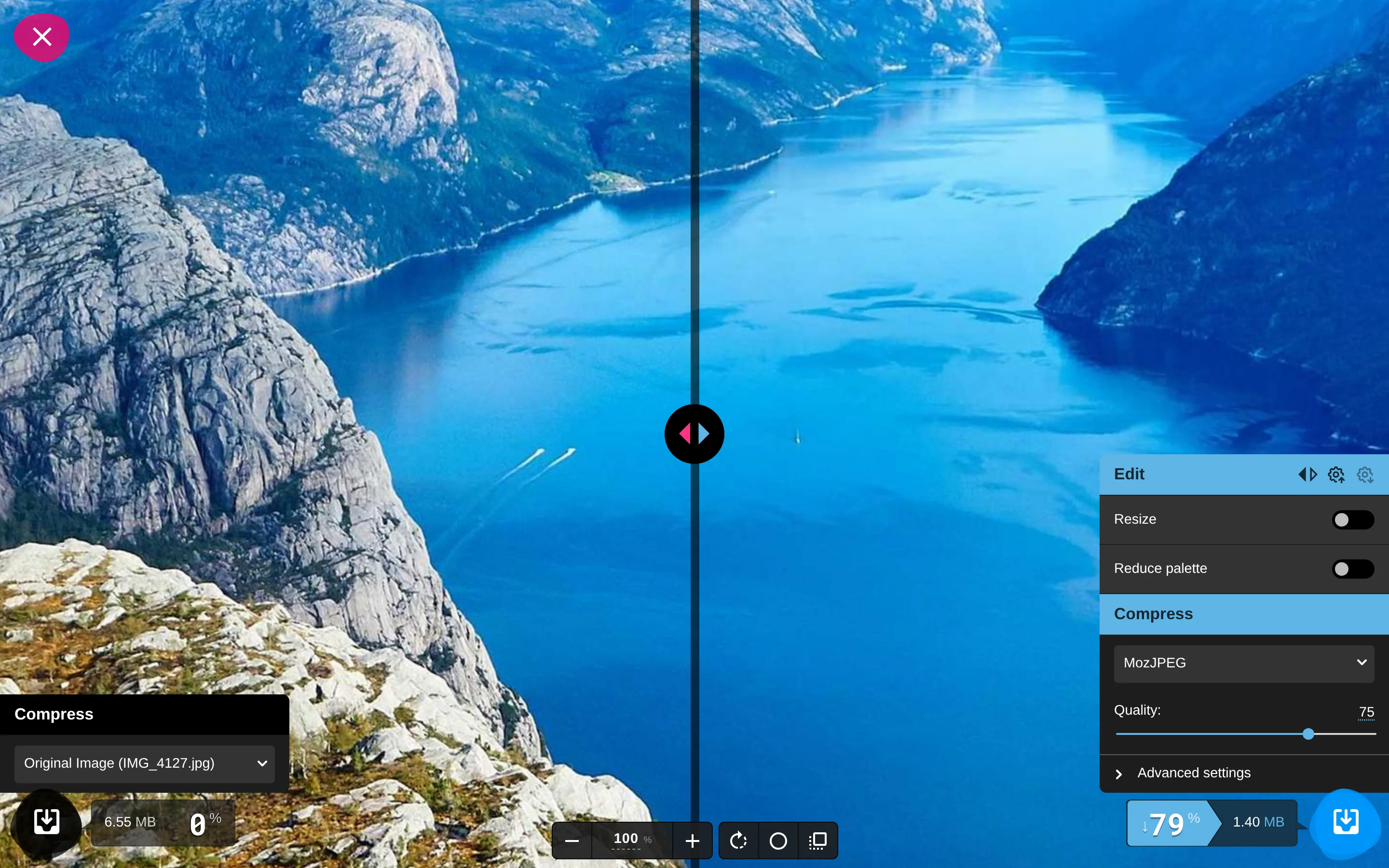
Using a 4032×3024 smartphone photo for comparison, the original file was 6,553,958 bytes. In zippic, with JPG selected at 75% quality, the result was 1.34 MB. In Squoosh, using the default MozJPEG encoder at quality 75, the output was 1,402,346 bytes. Using Caesium’s command-line version at quality 75 produced an output of 1,403,601 bytes. After converting all three to the same unit, they were all around 1.34 MB, with the dimensions unchanged.
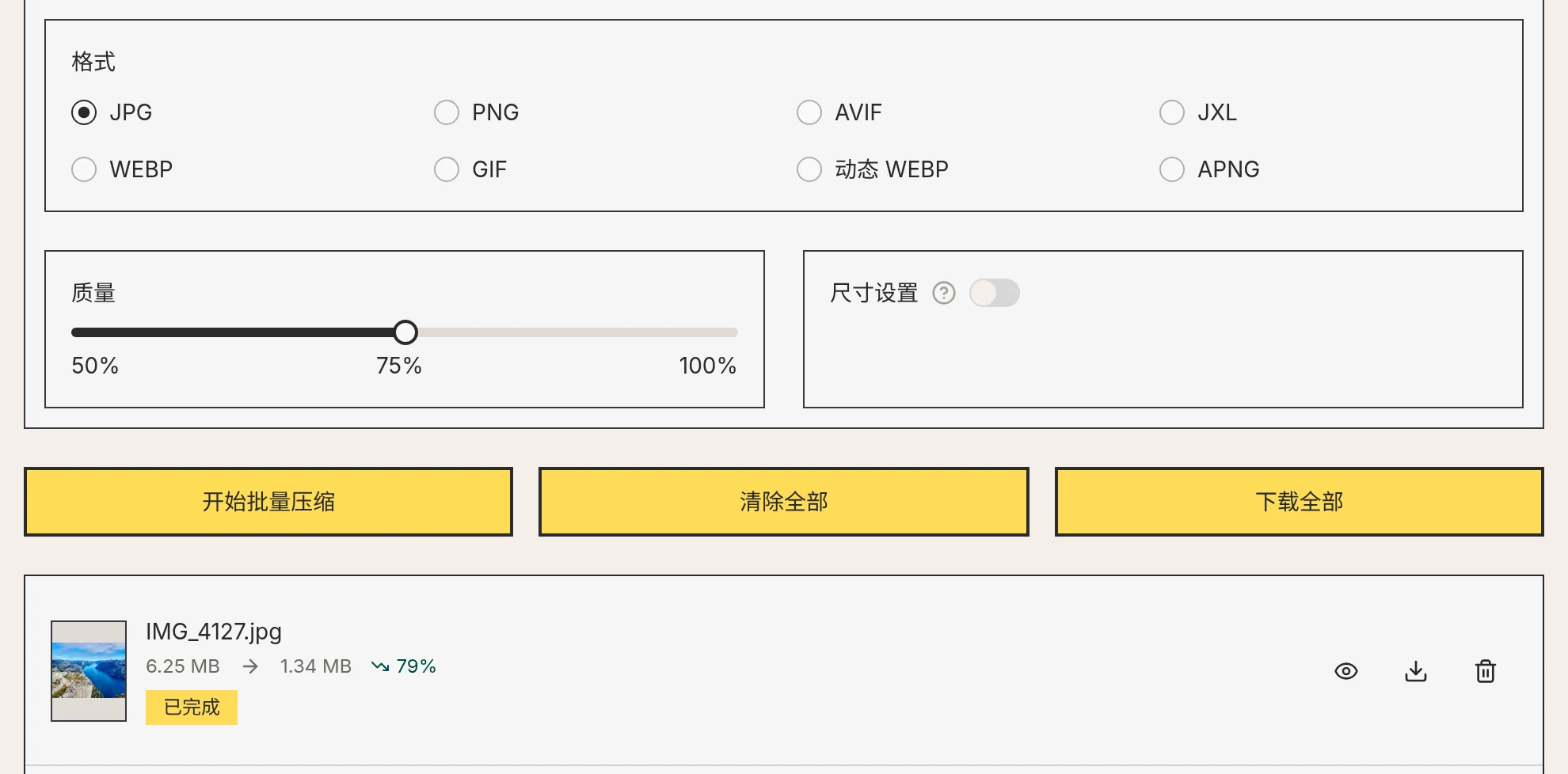
In Squoosh, the original image is displayed as 6.55 MB, while zippic displays 6.25 MB. The files are actually the same. The former calculates 1 MB as 1,000,000 bytes, while the latter uses 1,048,576 bytes. When comparing figures reported by different tools, inconsistent units can easily lead to incorrect conclusions.
Different encoders still involve trade-offs in PNG color quantization, AVIF encoding speed, and detail preservation. The differences become more noticeable when processing illustrations, screenshots, or assets with transparent backgrounds. For everyday photos, the use case is often a better basis for choosing a tool than the compression ratio.
When Photos Contain IDs, Contracts, or Client Assets
Images such as identity cards, passports, medical records, and unreleased product photos are best kept on your own device. Squoosh and zippic both perform compression in the browser. After the page loads, images are processed locally and are not uploaded to a server.
Squoosh is an open-source project from Google Chrome Labs. It provides encoders including MozJPEG, WebP, AVIF, JPEG XL, and OxiPNG. You can drag a divider to compare details before and after compression, and adjust color quantization and resizing parameters. It is suitable for users who want to understand what each parameter does. It can open only one image at a time, so it is not convenient for processing large numbers of files. According to the project documentation, Squoosh uses Google Analytics to collect visit data and file sizes before and after compression, but the image content itself is not sent elsewhere.
TinyPNG and iLoveIMG process files on their servers. TinyPNG states that uploaded images are retained for up to 48 hours before being permanently deleted, while iLoveIMG states that files are automatically removed within two hours. Both services provide deletion commitments, which are generally sufficient for ordinary photos. However, for images involving privacy or confidentiality requirements, local processing is a safer choice.
When You Only Need to Compress a Few Images or Work Temporarily on a Phone
If you only need to compress a few images for email attachments or web forms, TinyPNG and iLoveIMG are the most convenient options. Open the website and drag in your images; both services work in mobile browsers as well.
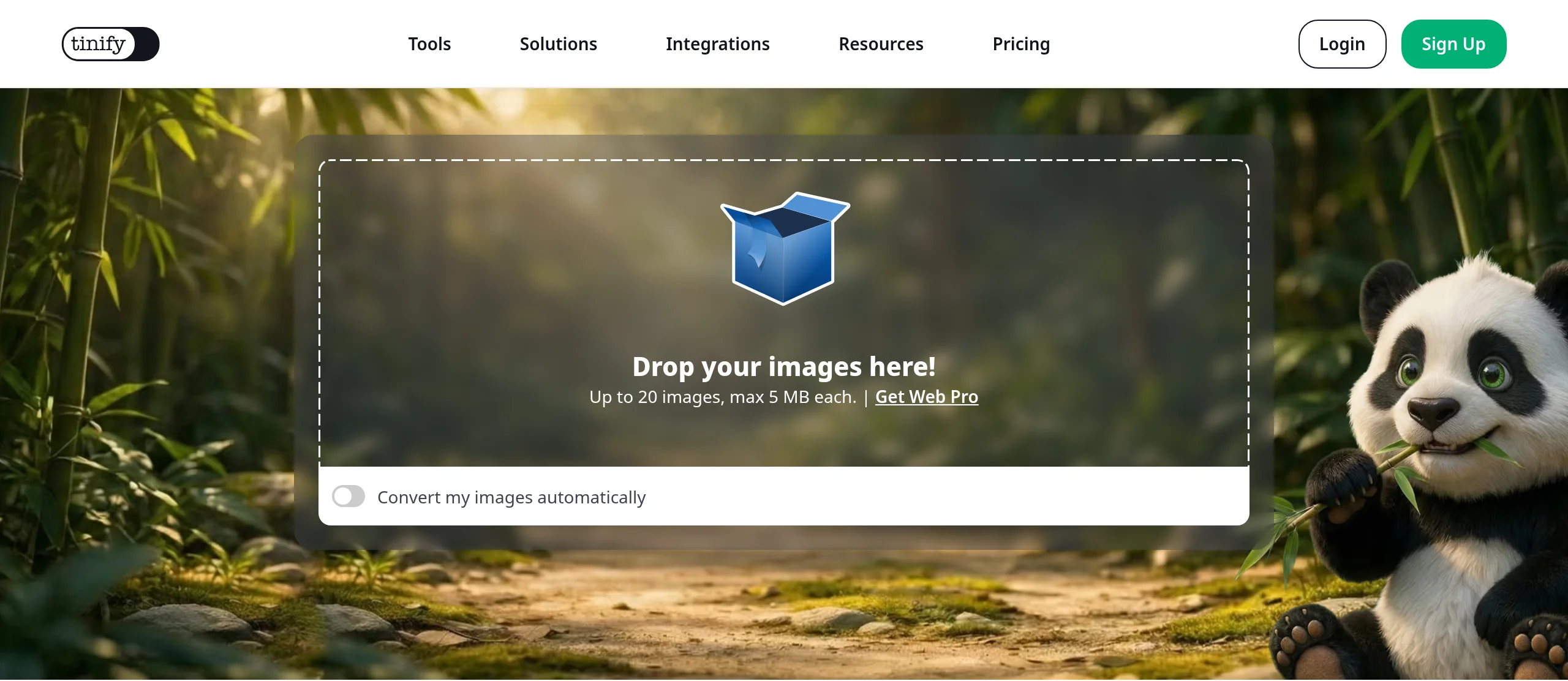
TinyPNG allows free users to upload up to 20 images at a time, with a maximum of 5 MB per image. It supports AVIF, WebP, JPEG, PNG, and APNG. When you upload an iPhone HEIC photo, it automatically converts it to JPG. Original photos from phones are often between 3 and 8 MB. Photos larger than 5 MB need to be resized first or processed with another tool. Format conversion is available to free users for only 3 images.
iLoveIMG offers a more generous free allowance. Its compression feature can process 30 images per task, with a total file size limit of 200 MB per task, and supports JPG, PNG, SVG, and GIF. It also provides tools for cropping, resizing, and adding watermarks, making it suitable when you want to complete several steps in one workflow.

When You Need to Process an Entire Folder
Tasks involving event photos, product image libraries, or project archives can easily involve hundreds of images. Desktop software is more suitable than web tools for this kind of work.
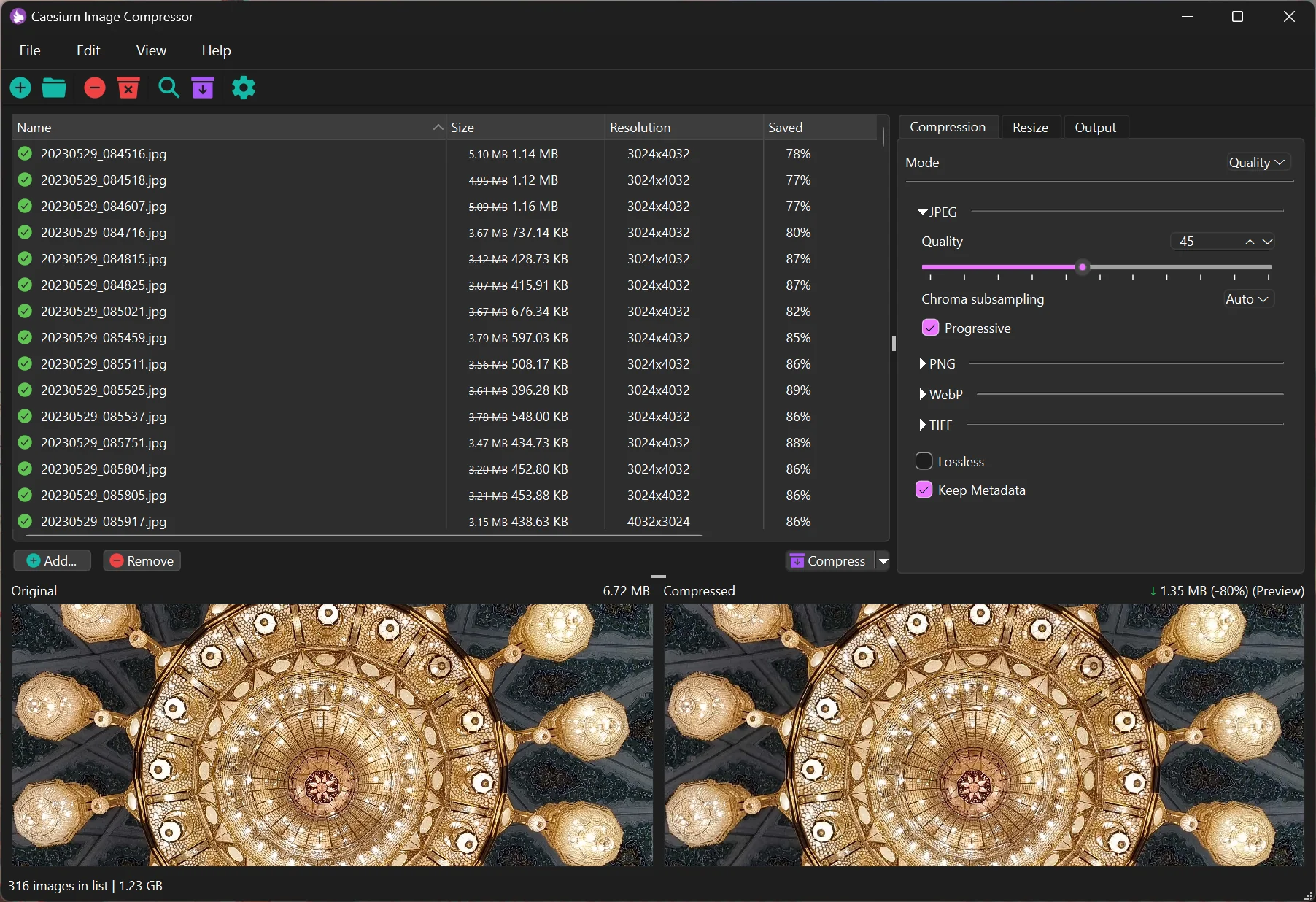
Caesium is open-source freeware licensed under GPL-3.0. It supports Windows 10 and later and macOS 12 and later. Linux users can compile it themselves or use third-party builds. It processes JPG, PNG, and WebP files, provides real-time previews, can preserve the original folder structure, and lets you choose whether to retain EXIF information.
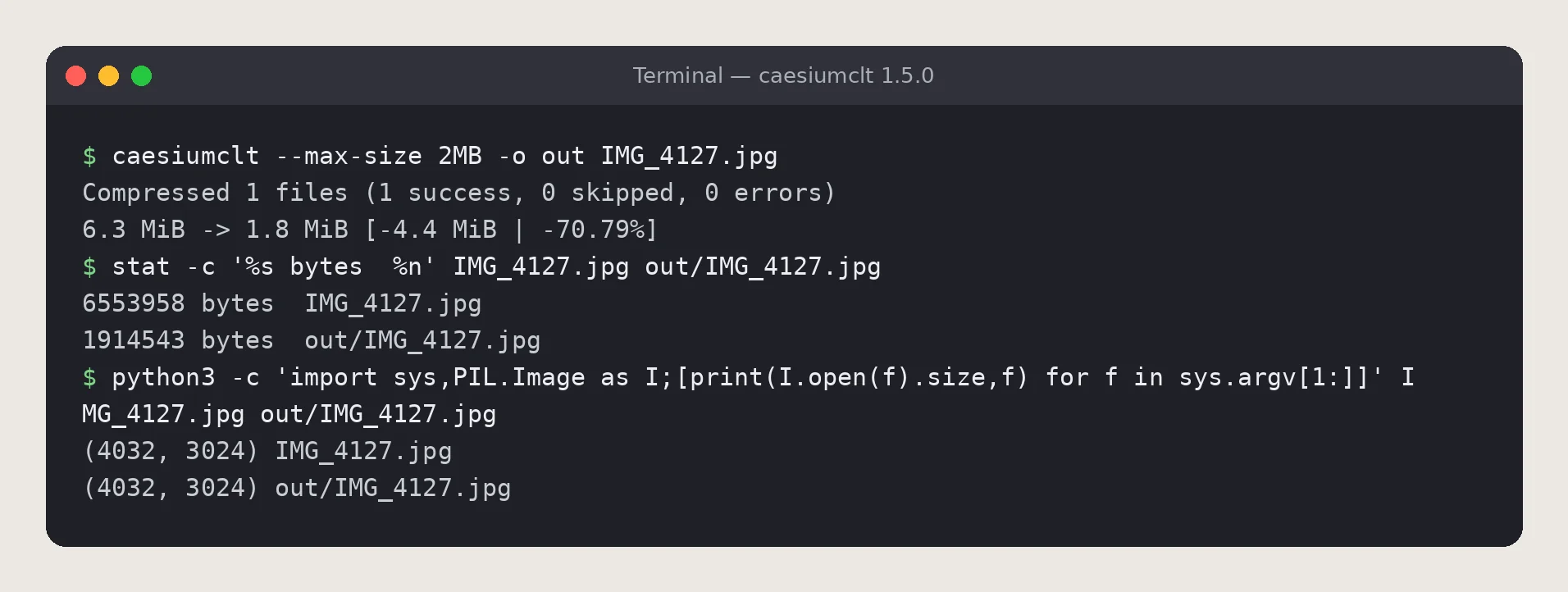
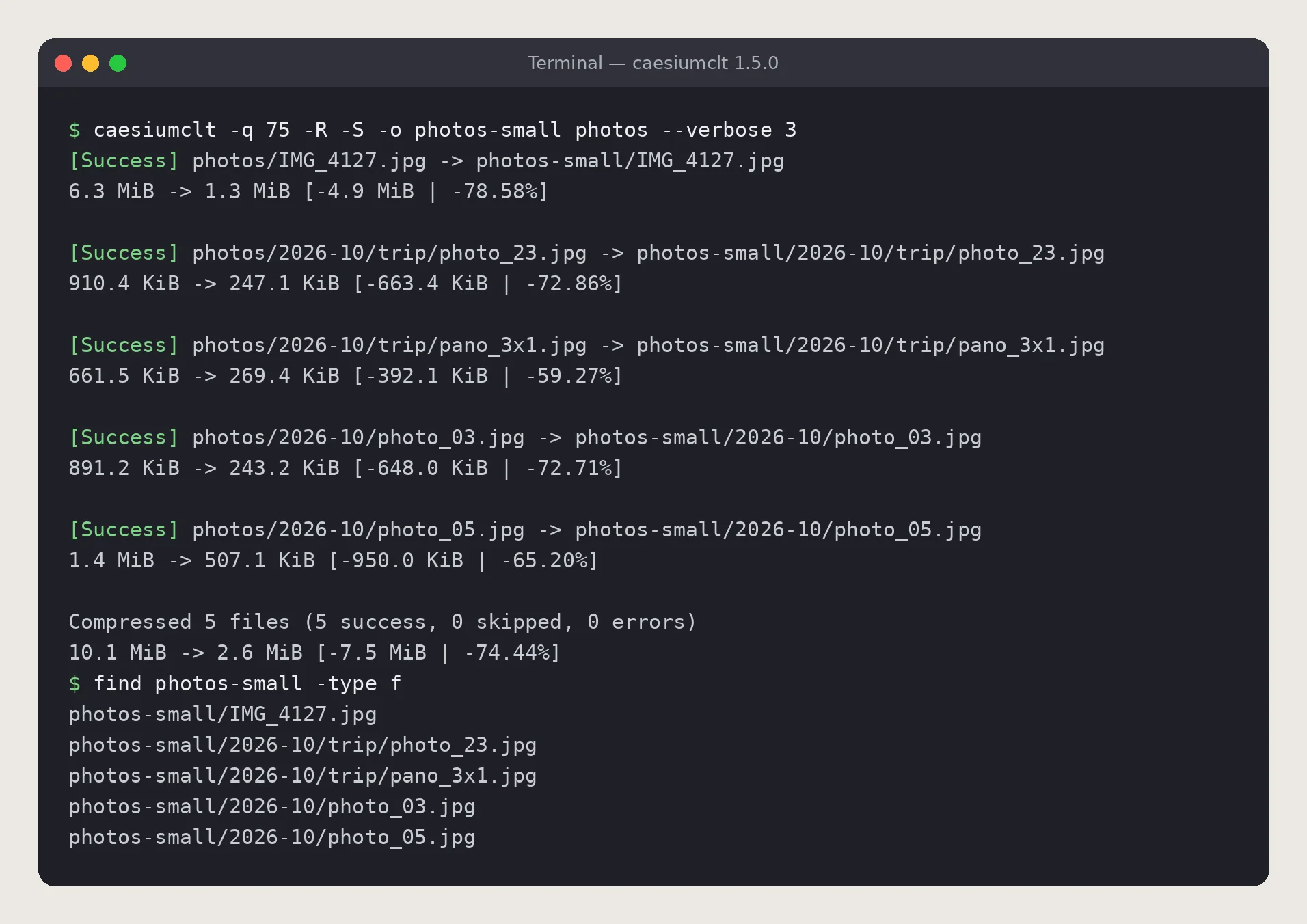
Caesium’s command-line version, caesiumclt, supports compression to a target size. In a test using the photo above, setting the maximum size to 2 MB produced an output of 1,914,543 bytes while keeping the dimensions at 4032×3024. For online application or reimbursement systems that accept only files up to 2 MB, compressing to a target size is more direct than repeatedly testing different quality settings.
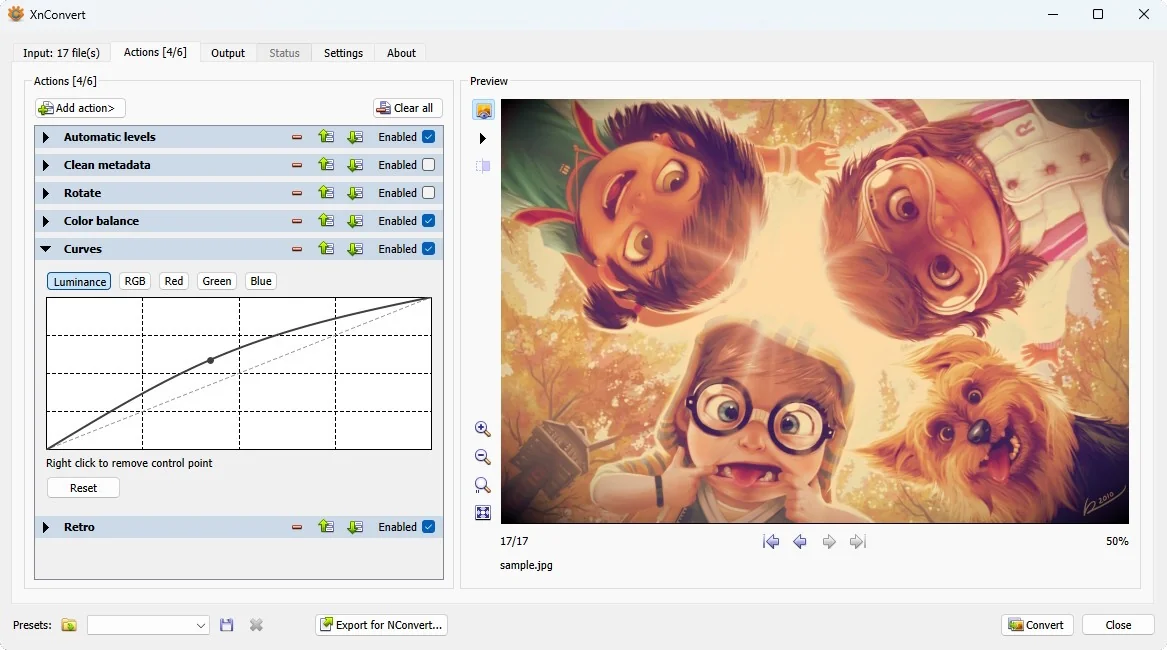
XnConvert is more of a batch image processor, with compression being just one of its features. It can read more than 500 formats and export approximately 70. It provides more than 80 operations, including resizing, cropping, color adjustment, and watermarking. Processing workflows can be saved as presets for repeated use, and the software can monitor folders and automatically process newly added images. It supports Windows, macOS, and Linux. Pay attention to its licensing terms: XnConvert is free for personal, educational, and non-profit use, while internal company use requires a license. A single license costs 15 euros.
For Design and Development Work on a Mac
ImageOptim is a long-established Mac tool. It is open-source and free. The current version is 1.9.3 and requires macOS 11 or later. It combines tools including MozJPEG, pngquant, Pngcrush, Zopfli, and SVGO. Drag images into the window, and the software automatically tries multiple optimizations while keeping the smallest result.
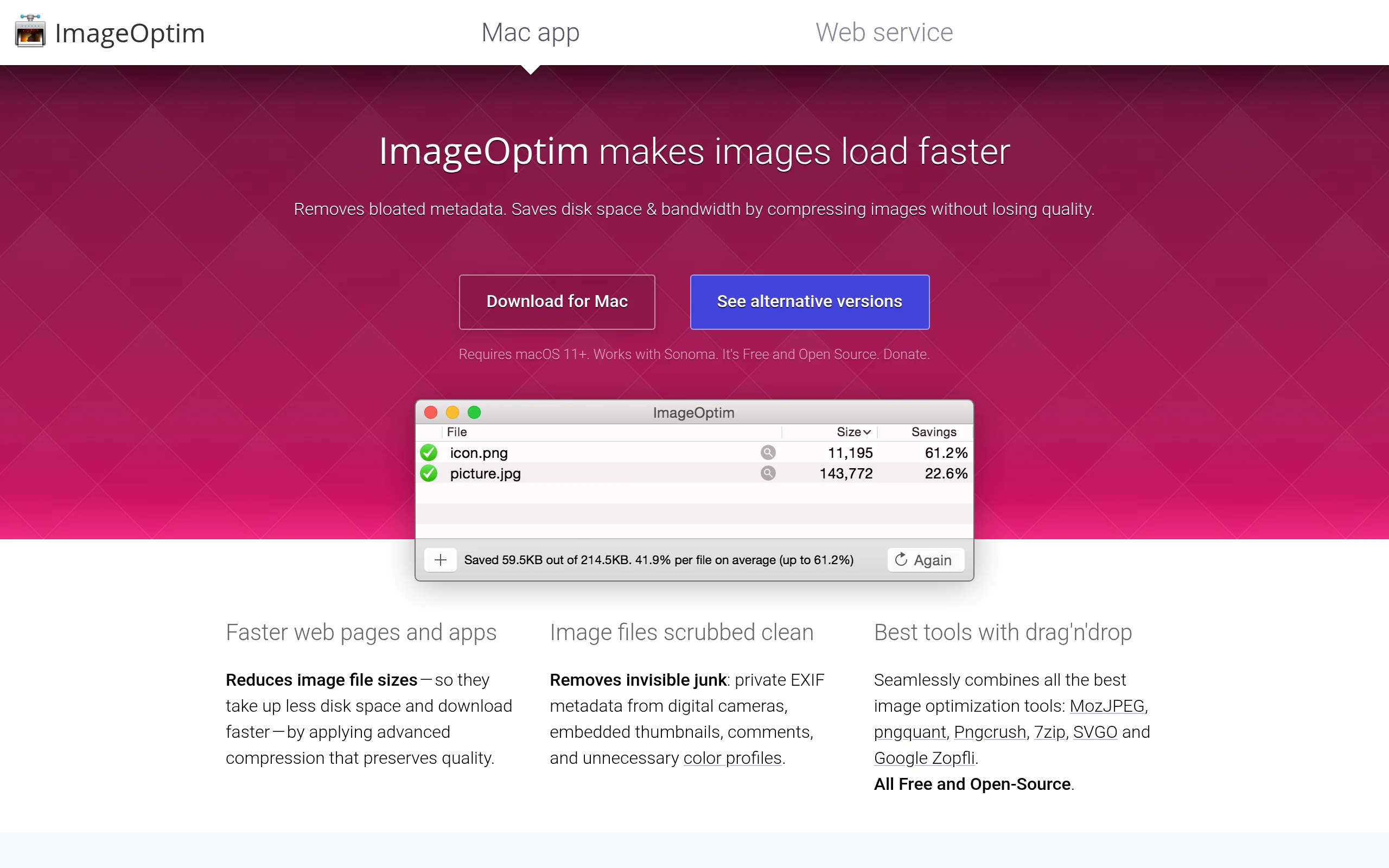
ImageOptim uses lossless optimization by default, preserving image quality while removing information such as GPS locations and camera serial numbers from EXIF data. This is useful for photos intended for public release. When you need smaller files, you can enable lossy compression in the preferences. This applies to JPEG, PNG, SVG, and animated GIF files. ImageOptim can also be accessed directly from Finder’s Services menu or launched from the command line. After exporting image slices, designers can drag them into the tool for processing without significantly disrupting their existing workflow. ImageOptim is not listed in the Mac App Store. The official website warns that counterfeit apps with the same name have appeared in the App Store, so make sure to download it from the official website.
When You Need to Integrate Compression into an Automated Workflow
Developers care more about whether compression can be written into scripts or deployment workflows. TinyPNG’s developer API includes 500 free compressions per month, making it suitable for websites that automatically process images after users upload them. caesiumclt provides precompiled programs for Windows, macOS, and Linux. It supports recursive directory processing, preserving folder structures, multithreading, and three compression modes: quality-based, lossless, and target-size compression. It can be integrated directly into continuous integration tasks or local build scripts.
When You Do Not Want to Install Software but Need to Process a Batch
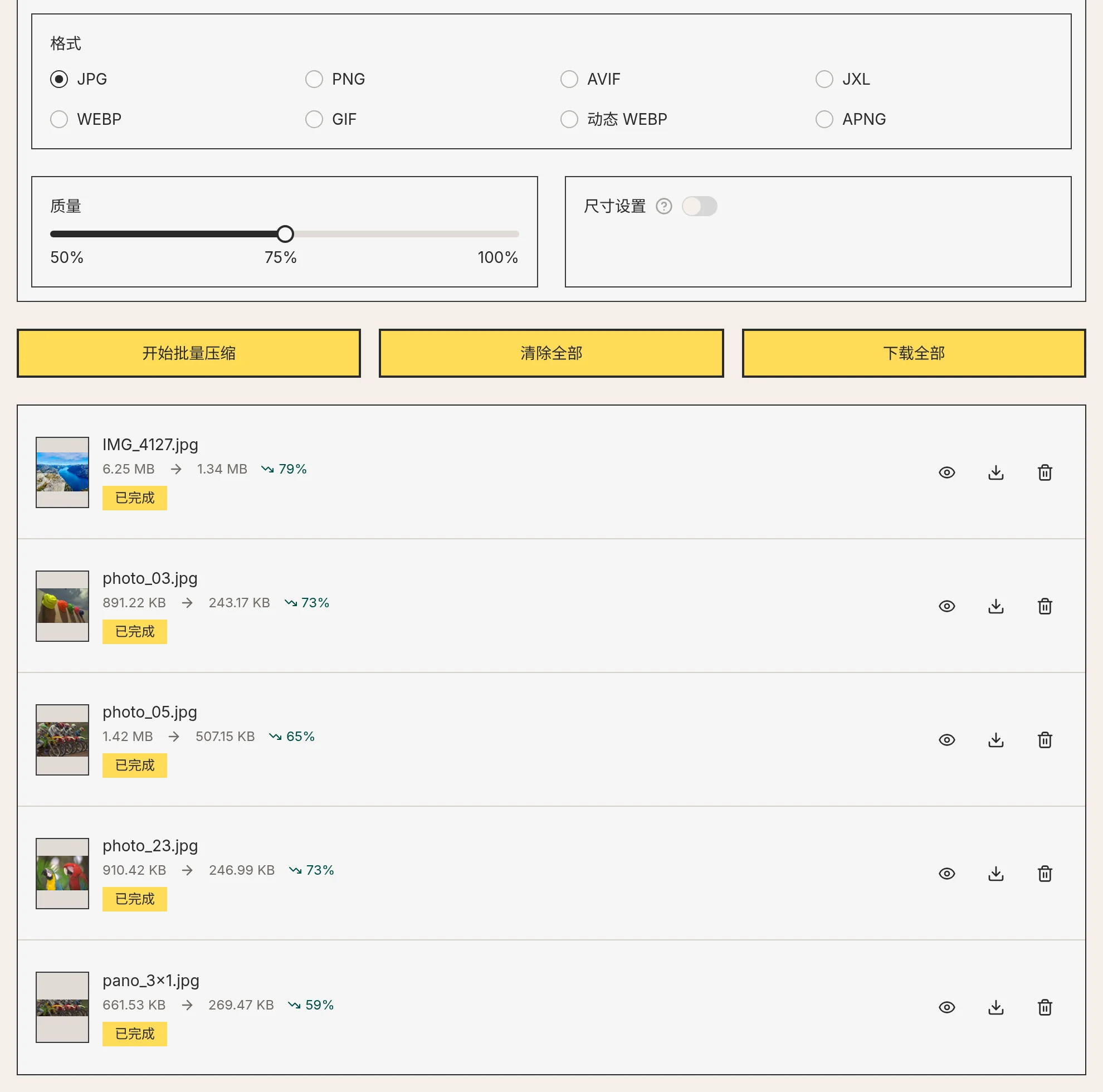
zippic is an online image compression tool that performs compression locally in the browser. No registration is required, and images are not uploaded to a server. On the batch compression page, you can select multiple images at once. Available output formats include JPG, PNG, WebP, AVIF, JPEG XL, and GIF. The default quality is 75%, and you can open “Size settings” to resize images consistently when needed. After compression, images can be downloaded individually, or you can click “Download all” to package them into a ZIP file. The official recommendation is to keep individual files under 50 MB; the actual number of files that can be processed depends on the device’s memory.
The image below shows the results of batch-compressing 5 JPG photos with the default settings. File sizes were reduced by 59% to 79%.
When you cannot conveniently install software on a company computer or borrowed device, and the images are not suitable for uploading, this approach lets you process an entire batch in the browser.
Comparison Table
| Tool | Processing location | Platform | Free range |
|---|---|---|---|
| Squoosh | Locally in the browser | Web | Free, one image at a time |
| zippic | Locally in the browser | Web | Free, supports batch processing; individual files recommended to be 50 MB or smaller |
| TinyPNG | Server | Web, API | Web: 20 images per task, 5 MB per image; API: 500 compressions per month |
| iLoveIMG | Server | Web | 30 images per compression task, 200 MB total |
| Caesium | Local device | Windows, macOS, Linux | Open-source and free |
| XnConvert | Local device | Windows, macOS, Linux | Free for personal and educational use; commercial use requires a license |
| ImageOptim | Local device | macOS | Open-source and free |
Regardless of which tool you use, always keep a copy of the original image before compression. Lossy compression is irreversible. Repeatedly compressing the same image will gradually reduce its quality, while the file size may not continue to decrease. When a photo will be printed or cropped later, exporting it again from the original will produce much better results than editing the compressed version. If the goal of compression is to meet an upload limit, refer to the settings for dimensions and quality in How to Reduce Smartphone Photos When Email or Online Applications Say “File Too Large” Without Making Them Blurry.
The article 2026 Free Image Compression Tool Comparison, published earlier this year, compares zippic, TinyPNG, Compressor.io, and Squoosh. You can read it alongside this article.