A photo that looks perfectly fine on an iPhone can often cause problems after being copied to Windows, uploaded to a Taobao or Shopify admin panel, or inserted into a marketing email: the preview may be blank, the upload may report an unsupported format, or the file may suddenly turn into a short video. Most of the time, the image is not damaged—the gallery's default format simply does not match the requirements of the destination.
Apple's default photo format is HEIC, sometimes written as HEIF. With similar visual quality, it usually takes up less space than JPG, but many computers, store administration panels, and email clients still recognize only JPG or PNG by default. If Live Photo was enabled when the picture was taken, the gallery also contains a short video. When you only want a still image, exporting it incorrectly can bring along the entire package.
Here is how to handle several common situations.
Cannot Open It After Copying It to a Windows Computer
HEIC files can generally be viewed directly on macOS and iPhone. On Windows, double-clicking may show a blank screen or report that the file cannot be opened if the required decoder extension is not installed.
You can first install the HEIF Image Extensions from the Microsoft Store, and install the HEVC Video Extensions if needed. After that, try previewing the image again. If the image will be sent to a client, uploaded to a store, or handed off to an outside contractor, converting it to JPG before sending is usually more convenient—do not assume that the recipient has installed the same extensions.
After copying the file from iCloud, AirDrop, or a cable, check the extension first. If it is still .HEIC / .heif, handle it as a conversion task. If the system has already generated a .JPG, check whether the resolution and file size are sufficient before deciding whether to compress it further.
The Store Does Not Accept HEIC for the Main Product Image
E-commerce administration panels are often very strict about formats. Unless the help documentation explicitly says that HEIC is supported, preparing the image as JPG is the safest option.
In practice, you can do the following:
In the iPhone Photos app, check whether the image is a Live Photo. If you only need a still image, select the image option when sharing, or turn off Live Photo before exporting to avoid including a .mov file. After converting HEIC to JPG, crop the image to a 1:1 ratio or the specified pixel dimensions required by the store, such as 800×800. If the file exceeds the size limit, reduce the quality slightly. The main image can be a little larger, but avoid compressing it so much that it becomes blurry; list thumbnails can usually be compressed more aggressively.
For the same batch of gallery images, you can prepare separate versions for your official website and store: use JPG for the store and WebP for your own site.
Images Are Broken or Not Displayed in Email and Newsletters
Many email clients still have incomplete WebP support, and they are even less likely to decode HEIC. Export email images as JPG and control the size of each file to reduce the chance of the email being clipped or loading slowly.
The method for extracting a still image from a Live Photo is the same as for store listings: keep the image and discard the video. When preparing weekly reports or campaign emails in batches, convert everything to JPG first and then scale the images to the width required by the email template. This is more efficient than testing formats one by one in the email editor.
You Want Smaller Files for Your Own Website or Blog
When you control the page, WebP is often a better choice: modern browsers can generally display it, and files are usually smaller than JPG at similar visual quality. Hero images, article illustrations, and product instruction images can all be converted from HEIC to WebP first and then cropped to fit the layout.
If you still need to provide files to a print shop, an older CMS, or an external partner, save an additional JPG copy instead of expecting them to change their system settings.
Complete the Conversion on Your Own Device
For ID photos, unpublished product images, and private travel photos, there is no need to upload them to an unfamiliar online conversion site first. You can keep the conversion in your browser locally: open the HEIC converter, drag in one or more HEIC files, choose WebP or JPG as the output format, start with a medium-high quality setting, and download the files when finished.
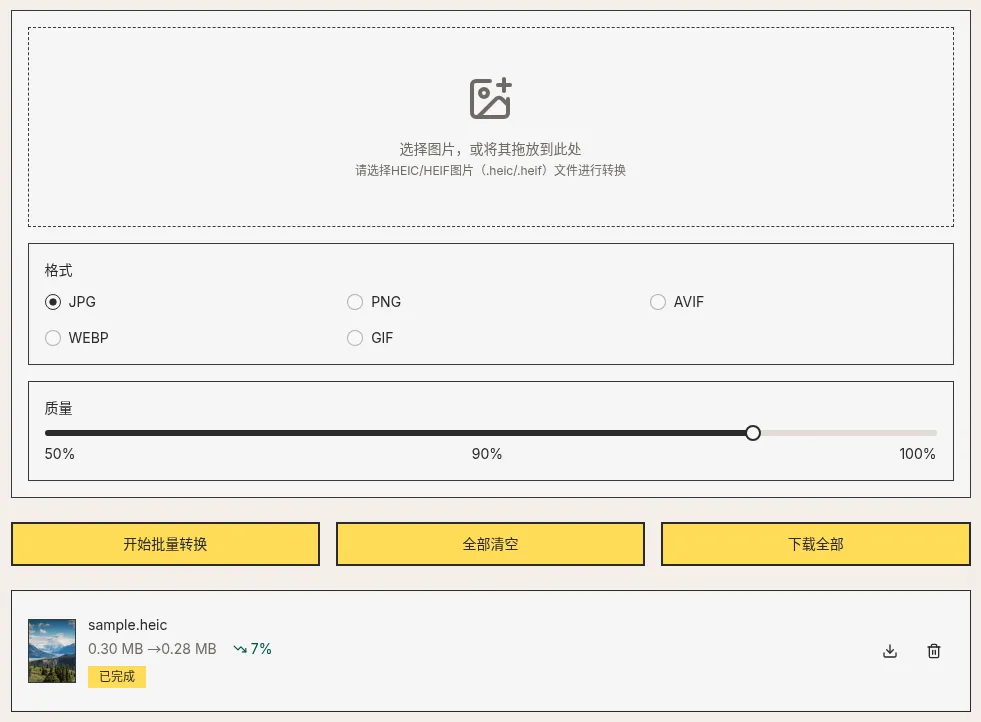
When a fixed size is required, the recommended order is: convert the format first → crop to the required dimensions → finally compress to the platform's limit. Solve one issue at a time so the result is easier to troubleshoot.
Check Before Exporting
Before sending the files, confirming these three points is usually enough: make sure you need a still image rather than a Live Photo video; convert HEIC first if the recipient's system does not support it; use WebP for websites and JPG for external systems and email. Once the format is correct, cropping and compression will be meaningful.