Many websites still rely heavily on bulky JPEG and PNG files, which leads to slow page load times, higher bandwidth costs, and poor Google PageSpeed scores. WebP and AVIF formats can slash image file sizes by 30% to 80% with virtually no perceptible loss in visual quality. However, most people either convert images manually one by one, or rely on complex plugins and cloud services—which is tedious and raises privacy concerns over uploading images to third-party servers.
zippic.app is a free tool that runs entirely within your browser. Your images are never uploaded to any server; all compression and format conversion happen locally on your device. Just drag and drop your files to start—with no usage limits or file size caps.
Why Images Are Still Slowing Sites Down
Although WordPress has introduced native lazy loading and responsive images, it still lacks automatic modern format conversion out of the box. High-resolution photos straight from cameras, design assets, and large product images get uploaded in bulk, quickly bloating your storage and bandwidth. Most performance plugins focus heavily on caching rather than on-the-fly format conversion. The result is often:
- Slow loading times on mobile devices
- Low Core Web Vitals scores
- Increased hosting and bandwidth costs
Switching to WebP or AVIF can significantly alleviate these bottlenecks.
A Quick Look at WebP vs. AVIF
WebP already enjoys broad browser compatibility and typically reduces file size by 20% to 30% compared to JPEG/PNG. AVIF delivers even higher compression efficiency, especially for high-resolution images. Both formats now have widespread browser support, making them completely safe and practical for production use.
Why Traditional Workflows Fall Short
Converting files manually one by one quickly becomes unmanageable at scale. Installing multiple CMS plugins can complicate configurations and introduce compatibility issues. Using cloud-based compression services often comes with strict free-tier quotas and requires uploading sensitive images to external servers.
A Simpler Approach with zippic
Visit https://zippic.app (or the Chinese version at https://zippic.app/zh), drag and drop your images into the window, select your target format (either WebP or AVIF), wait for the local processing to complete, and download the results.
- Images stay on your local machine throughout the entire process—never uploaded
- Batch process as many images as you need, with no quantity or size limits
- Supports common image formats and direct conversion to WebP / AVIF
- No registration or login required
Once processed, you can upload the optimized files directly to your WordPress media library, e-commerce dashboard, or social platforms. Your site gets lightweight images immediately without extra overhead.
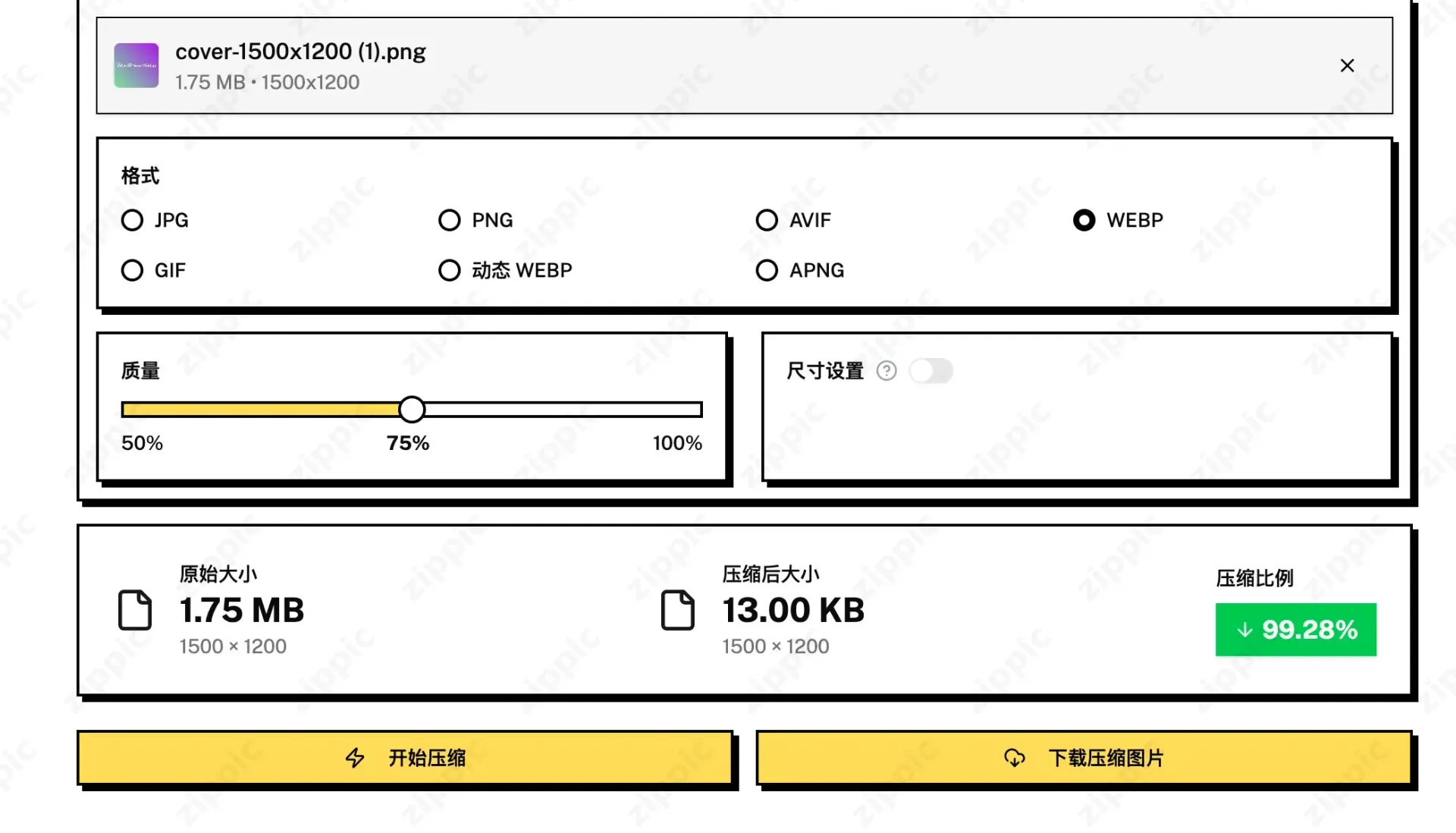
As shown below, file size reductions can exceed 90% in some cases.
Practical Use Cases
Compress your featured and inline images before publishing blog posts to keep pages lightweight.
Batch process main product photos and detail gallery shots for e-commerce stores to improve load times and boost conversions.
Standardize all image assets to WebP/AVIF when building landing pages or client sites to trim down total page weight.
After compression, you can compare before-and-after file sizes. In most cases, file sizes drop drastically while visual quality remains virtually indistinguishable.
Frequently Asked Questions
Do I need to change how I upload images? No. Simply compress them beforehand and upload as usual.
Does WordPress automatically convert formats? No. While WordPress supports displaying modern formats, it does not automatically convert uploaded images.
Should I choose WebP or AVIF? Either works great. AVIF usually produces smaller files, while WebP offers broader legacy compatibility. zippic supports both.
Will the images become noticeably blurry? Under standard settings, the difference is practically invisible to the naked eye.
Is there a free usage limit? No, it is completely free to use without limits.
Give it a try at https://zippic.app Drag a few of your own images in and see how much file size you can save.