
Have you ever found an old photo and wanted to know when it was taken, received a landscape photo from a friend and wanted to confirm where it was taken, or prepared to share photos from home while worrying that they might contain location data?
You can start by checking the photo’s EXIF information.
If the photo still contains the relevant metadata, you may be able to find its capture time, camera settings, and GPS coordinates. However, not every photo contains these records: screenshots, forwarded images, or edited files may have already lost some of their information.
Below, we explain how to use the zippic EXIF Information Viewer to inspect photos and how to understand the results.
How to Check When and Where a Photo Was Taken
No software installation is required. Prepare the original photo, and you can view its information directly in your browser.
1. Select the Original Photo
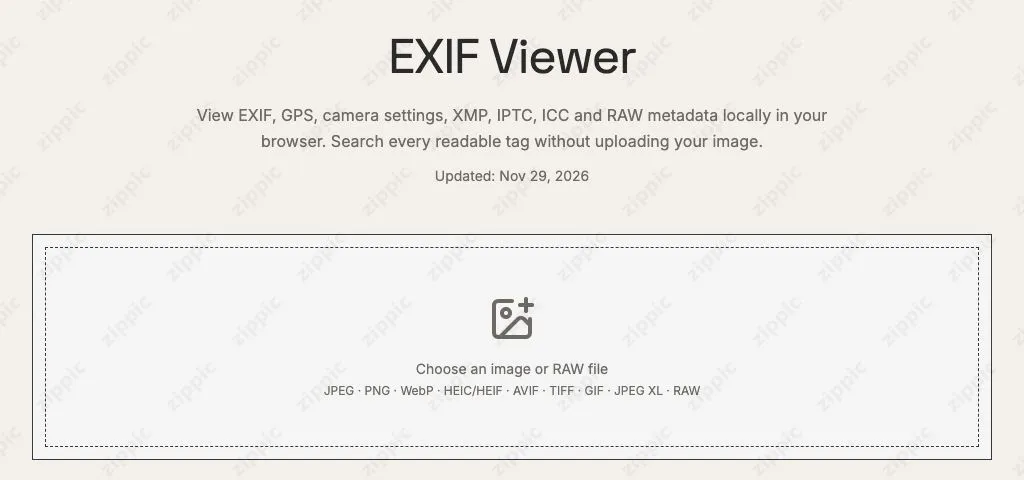
Open the zippic EXIF Information Viewer, click “Select Image or RAW File,” or drag the file onto the page.
Whenever possible, use the original file saved in your phone’s photo library, on a camera memory card, or in a backup. Images saved from chat apps, screenshots, and images created through copy and paste may not retain the original capture information.
The viewer supports image formats such as JPEG, HEIC/HEIF, PNG, and WebP, as well as supported camera RAW files. Support for a format does not mean that the file necessarily contains EXIF.
The file is read locally in your browser and does not need to be uploaded. The viewer’s resources must be loaded the first time you use it; once loading is complete, you can view the results.
2. Find the Capture Time and GPS Information
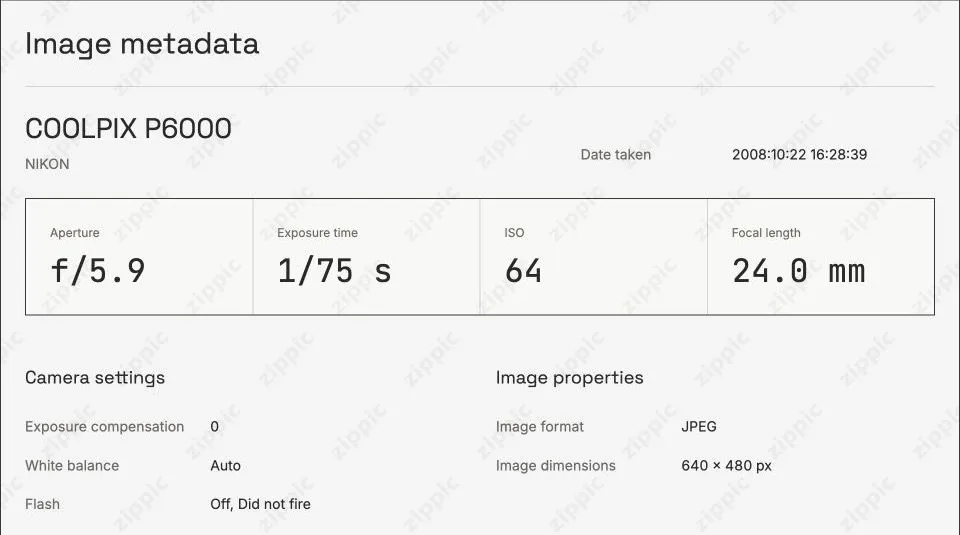
After reading is complete, first check the capture overview, then search or expand the complete metadata.
Depending on what you want to find out, look for these fields:
| What you want to know | Fields to check first | How to interpret them |
|---|---|---|
| When the photo was taken | Capture time, commonly DateTimeOriginal | The original capture time recorded in the file |
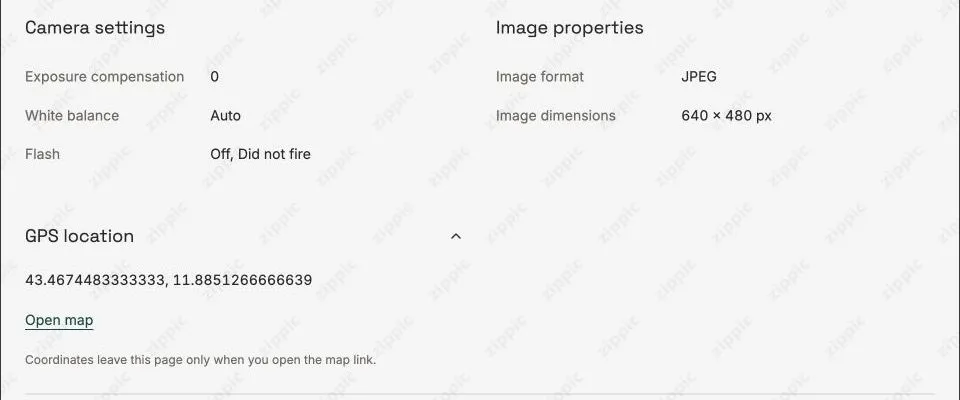
| Where the photo was taken | GPS latitude, GPS longitude | The location coordinates saved in the file |
| What device was used | Camera manufacturer, camera model, lens model | Information about the camera and lens used |
| What settings were used | Aperture, exposure time, ISO, focal length | The capture settings recorded in the file |
| Whether the image was processed by software | Software field and related metadata | May provide clues about the processing history, but cannot by itself prove that the file was modified |
You do not need to understand every tag. To find the time, start with the capture time; to find the location, start with GPS. Expand the field details if you need to verify more information.
3. Verify the Results Instead of Relying on a Single Value
If the photo contains readable GPS coordinates, you can use the map link to view the corresponding location.
The coordinates are sent to the map service only when you click the map link. If you only want to check whether the file contains location information, you can simply view the latitude and longitude fields.
The capture time should also be evaluated together with other records. An incorrectly set device clock, time zone differences, or later modifications may cause the time in the file to differ from the actual circumstances.
EXIF contains information saved in the file; it is not independent proof of when or where the photo was taken.
What Is EXIF? What Other Information Can Photos Store?
EXIF is a standard used to record information related to digital photos. In addition to the image itself, a photo file may contain information such as the capture device, time, exposure settings, and GPS data.
For example, a photo may record all of the following:
- Capture time, camera model, and lens model.
- Shutter speed, aperture, ISO, and focal length.
- GPS latitude, longitude, and altitude.
- Image orientation, author, copyright, or image-processing software information.
This information is collectively known as image metadata, but not all of it belongs to EXIF. Images may also contain XMP, IPTC, and ICC information, which can relate to descriptions, copyright, color profiles, and other details. zippic can display the metadata that the current viewer is able to read.
For most users, the three most useful categories are usually capture time, capture settings, and location data that should be checked before sharing.
Why Is the File Modification Time Different from the Capture Time?
This is a common source of confusion when viewing old photos: the photo was clearly taken years ago, but the computer shows that it was modified only recently.
The reason is that these two timestamps describe different things.
The capture time usually comes from the photo’s internal metadata; the file modification time comes from the file system and indicates when the file was last modified. Downloading, exporting, editing, or copying the file in different ways can affect the latter.
Therefore, when checking when a photo was taken, prioritize the “capture time” rather than treating the file modification time as the date the photo was taken.
You should also pay attention to the time zone. Some photos save both the capture time and the time zone offset, while others save only the time. When traveling across time zones or when the device clock is inaccurate, you need to compare the information with your photo library, itinerary, or other original records.
If the original capture time is missing, the viewer cannot calculate the exact capture date based solely on the file modification time.
Why Can’t I Find EXIF After a Photo Has Been Forwarded?
If the original image contains information but the forwarded image does not, you should generally check whether the file was reprocessed during transmission.
Common situations include:
- A chat or social platform re-encodes the image and removes some metadata.
- Editing software does not retain the original capture information when exporting.
- The image is a screenshot, whose file records describe the screenshot itself rather than the original photo shown on the screen.
- The image did not contain the relevant field in the first place.
- The file contains information beyond the current viewer’s parsing capabilities.
The behavior may vary depending on the platform, version, and method of sending. You should not assume that “forwarding always removes EXIF,” nor that “sending the original always preserves all information.”
When information is missing, troubleshoot in this order:
- Find the original file on your phone, camera, or backup.
- Select the file directly for reading, and avoid taking a screenshot or using copy and paste first.
- Compare the original file with the forwarded, compressed, or exported version.
zippic can read existing, supported information in a file, but it cannot recover metadata that has already been deleted or was never recorded.
If There Is No GPS, Can the Capture Location Be Found from the Photo?
Not with an EXIF viewer alone.
When a photo contains readable GPS coordinates, you can view the location recorded in the file. If there are no coordinates, the viewer will not infer the location from buildings, mountains, or street scenes.
The absence of GPS information does not necessarily mean that the photo was processed. GPS may be missing because location services were disabled when the photo was taken, the camera did not support location recording, or the location data was not retained during export.
Conversely, finding GPS information does not mean that the coordinates are absolutely accurate. Positioning errors, later modifications, and other factors may affect the result, so you should evaluate it together with the photo’s source and the actual circumstances.
What Information Should You Check Before Sharing a Photo?
If you plan to publish a photo publicly, first consider whether you are comfortable letting recipients see the following information:
| Information | Questions to consider before sharing |
|---|---|
| GPS latitude and longitude | Could they reveal your home, workplace, or another private location? |
| Capture time | Could they disclose a trip or schedule that you do not want to make public? |
| Author and contact details | Do they contain your name, email address, or other identifying information? |
| Device serial number | Is it necessary to disclose the device identifier? |
Not every photo contains these fields, and not all metadata needs to be removed. For photographic works, author and copyright information may be exactly what you want to keep.
If you find information that you do not want to share, use a tool that supports editing or removing metadata to process a copy, then check the final file again with a viewer. The zippic EXIF Viewer currently supports viewing only; it does not support editing or deleting metadata.
You should also not treat compression, cropping, or format conversion as automatic privacy protection. Whether metadata is retained depends on the specific tool and export settings, so checking the file again after processing is more reliable.
In addition, even if a file has no GPS information, house numbers, shipping labels, license plates, or views outside a window may still reveal personal information. In addition to checking the metadata, inspect the photo itself.
Frequently Asked Questions
Do I need to upload the file to view photo information?
When using the zippic EXIF Information Viewer, the file is read locally in your browser and does not need to be uploaded. The first use requires downloading the viewer’s resources; when you click a map link, the relevant coordinates are sent to the map service.
Can I view HEIC photos from an iPhone?
Supported HEIC/HEIF files can be read for metadata. We recommend selecting the original HEIC file directly instead of converting it to JPG just to view its information. The fields displayed depend on the information actually saved in the file.
Can I still check the information if a RAW file has no preview image?
Possibly. Reading RAW metadata is different from decoding the entire photo. zippic does not decode the complete RAW image; metadata may still be displayed when there is no readable embedded preview.
Can EXIF be used to determine whether a photo has been modified?
Not on its own. Fields such as software names and changes in timestamps may provide clues, but metadata can be edited or deleted. The absence of relevant fields cannot prove that a photo has not been modified.
Is a photo without EXIF safe to publish publicly?
You cannot determine that based on this fact alone. The file may contain other metadata, and the image itself may contain private information. Before sharing, check both the file information and the photo’s content.
Finding the original file, checking the capture time and GPS data, and then verifying their source and meaning can resolve most questions about photo information. You can start with the zippic EXIF Information Viewer to see what records the photo you have actually retained.
Reference: CIPA Digital Imaging Standards and EXIF Standards