A visa or job portal asks for a photo "no larger than 2 MB," and the original in the phone's camera roll is just over 6 MB. The usual reaction is to open a compressor and drag the quality slider down. The file does get smaller, but the text on the passport page turns soft and small blocks appear around the edges of the face. That outcome usually comes from how the photo was compressed: the goal was a smaller number, with no thought given to what the photo is for.
Where the limits sit
Email is relatively generous. Personal Gmail accounts allow 25 MB of attachments per message, and Outlook.com also allows 25 MB, counting the message text as well. Exchange mailboxes at work default to 10 MB unless an administrator raises it. Attachments are Base64-encoded in transit, which adds roughly a third to their size, and many mail servers check the encoded size, so a message that looks under the limit in the outbox can still bounce.
Web forms are much tighter. Job sites, visa and university applications, and expense systems commonly cap each file at 2 MB or 5 MB, ID photo fields sometimes accept only a few hundred kilobytes, and many take only JPG or PDF. The numbers differ from site to site, so the upload instructions are the reference to follow, and they often specify a minimum pixel size too.
Why phone photos are large, and why compression blurs them
The main camera on most current phones saves 12-megapixel photos by default, typically 4032×3024 pixels, and the 48- or 50-megapixel modes on some models double both the width and the height. Phones also save at a high JPG quality to protect the image, so 3 to 8 MB per photo is common, and night scenes or foliage run larger. That is a sensible default for a camera roll, where the original may be cropped or printed later, but it is far beyond what a 2 MB form needs. A reviewer looking at a receipt or an ID photo on a laptop screen can read every character at 2,000 pixels wide.
A JPG's size depends mainly on its pixel count and its compression quality. Halving the width and height leaves a quarter of the pixels, and the file usually shrinks substantially with them. Quality decides how much detail the encoder keeps in each block. Downsizing removes information a screen could not display anyway, so as long as the final dimensions suit the purpose, the photo looks the same. Lowering only the quality leaves the photo 4,032 pixels wide, and the encoder has to throw away a large amount of detail to reach the target size. That loss shows up directly in the picture as banding in the sky, ragged edges on text, and faint squares on flat backgrounds. It is the reason the passport photo above turned soft.
Choosing dimensions and quality
The sensible order is to pick the long edge based on how the photo will be used, then compress at a medium-to-high quality. Site or product photos that someone will view on screen after receiving them by email need 1,600 to 2,400 pixels on the long edge. Receipts and invoices need legible text, so around 2,000 pixels on the long edge is a safe choice. ID and visa photos usually come with exact specifications. The US visa application, for example, requires a square JPEG between 600×600 and 1200×1200 pixels and no larger than 240 KB.
Once the size is set, a JPG quality of 75% is a reasonable starting point, and it can go up a step if the result is well under the limit. Checking the exported file at 100% zoom, especially text and the edges of faces, is enough to confirm there are no obvious block artifacts.
With a 2 MB limit, it is safer to aim for about 1.8 MB. Some systems count 1 MB as 1,000,000 bytes and others as 1,048,576 bytes, so a file that shows as 1.95 MB on a computer may still be rejected.
A note on WebP
At similar visual quality, WebP files are usually smaller than JPGs; Google's own comparison put the difference at 25 to 34 percent. For images on a site the sender manages, or for recipients who explicitly accept WebP, the format is worth considering. Many forms, however, accept only JPG, PNG, and PDF, and some email clients and photo viewers cannot preview WebP, so if the instructions say JPG, the output should be JPG. Renaming a .webp file to .jpg does not change its contents, and systems that inspect the file header will still reject it. iPhone photos saved as HEIC run into the same compatibility problem; converting them is covered in How to Turn HEIC and Live Photos from Your Phone Gallery into WebP / JPG Files Ready for the Web.
Compressing in the browser
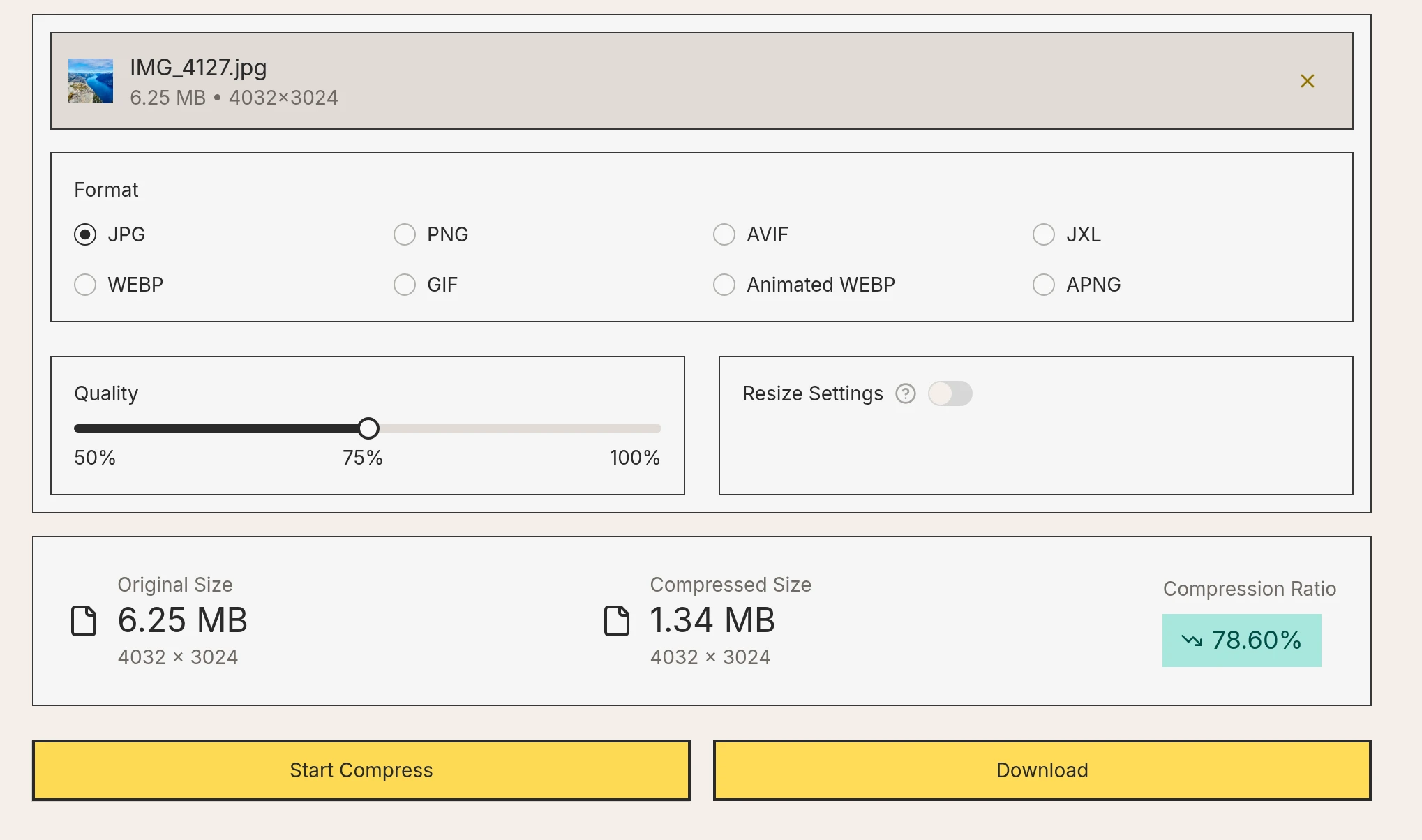
zippic is a free online image compressor that runs locally in the browser, so photos are not uploaded to a server, which suits passports, ID cards, and receipts that contain personal information. On the zippic image compressor, select the photo, choose JPG, keep the default quality of 75%, and click Start Compress. The photo below started at 4032×3024 and 6.25 MB, and with only the quality setting applied it came out at 1.34 MB.
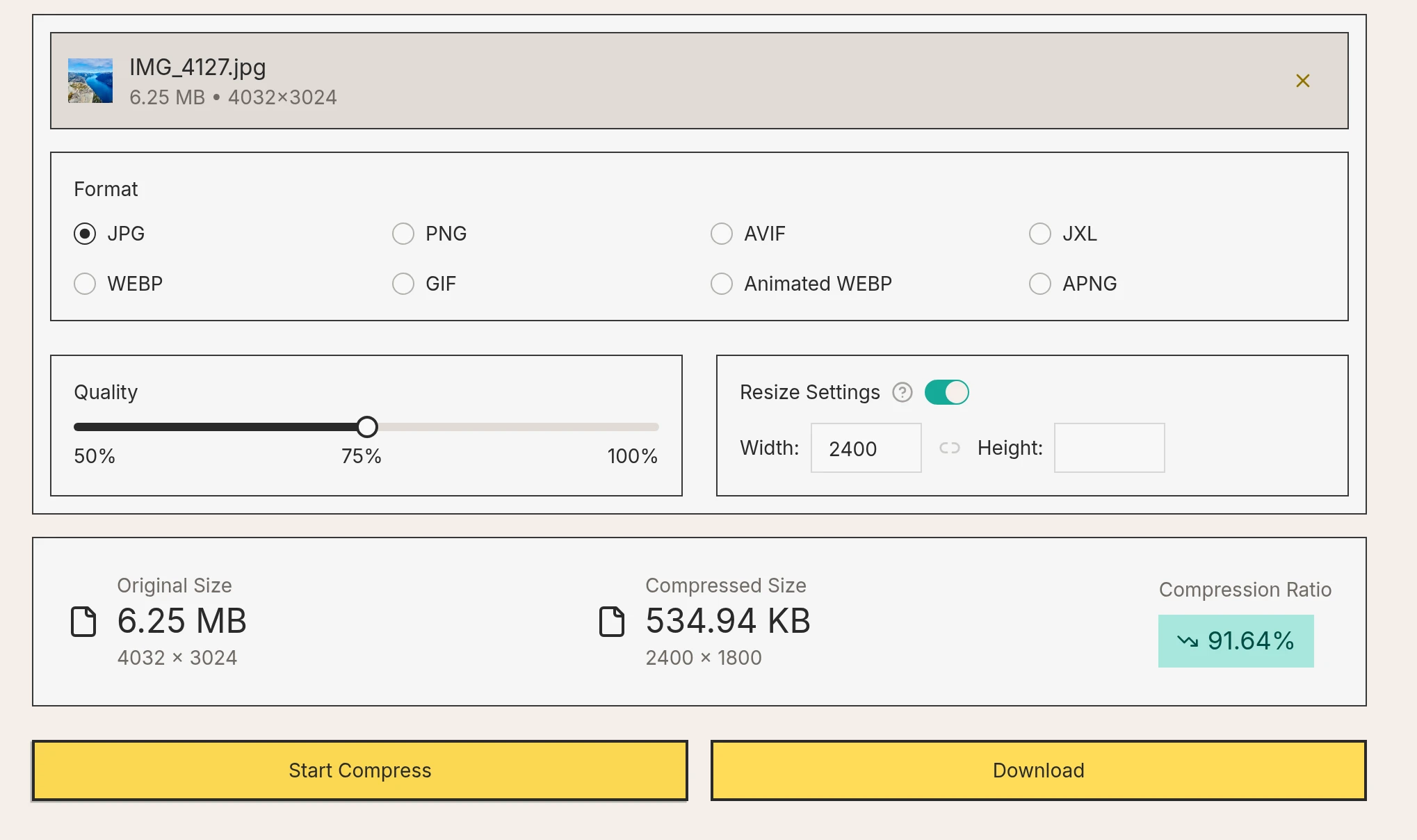
If the form requires something smaller, or a detailed photo will not fit under the limit through quality alone, turn on Resize Settings, enter 2400 as the width, and leave the height empty so the tool keeps the original aspect ratio. Scaled to 2400×1800, the same photo is 534.94 KB and looks practically identical on screen.
Once the size meets the requirement, click Download to save the file. For a larger batch of photos, the bulk image compressor uses the same settings.